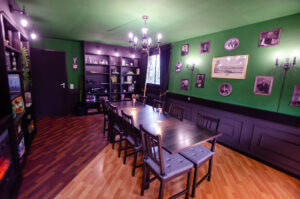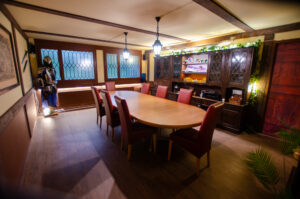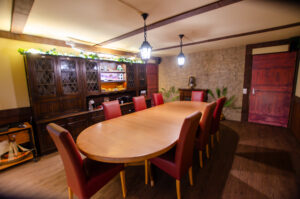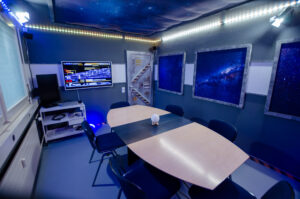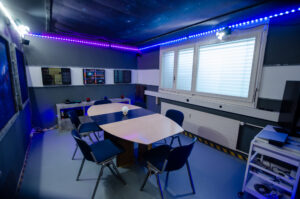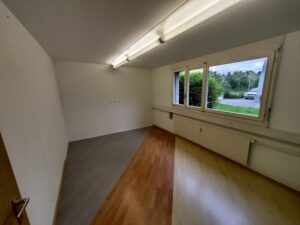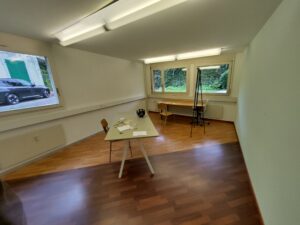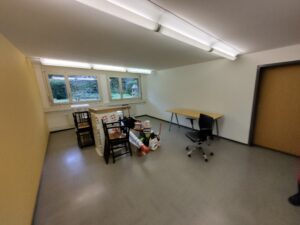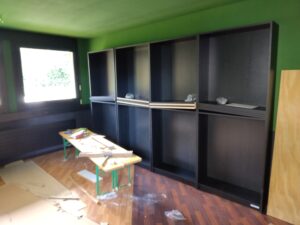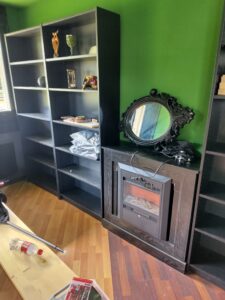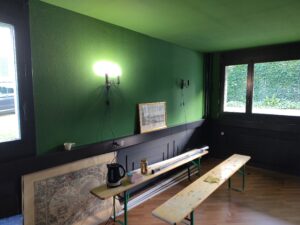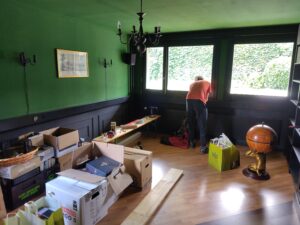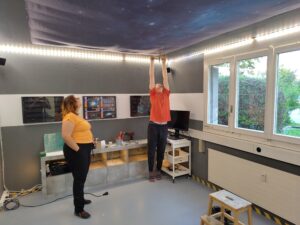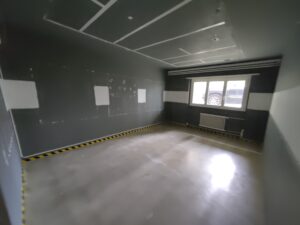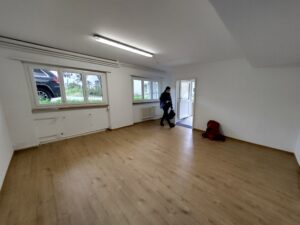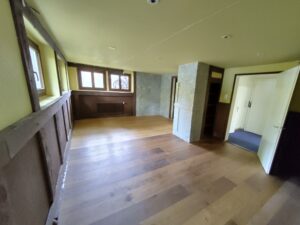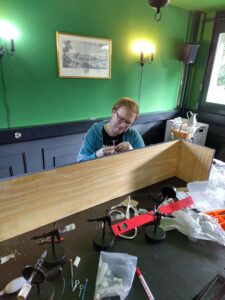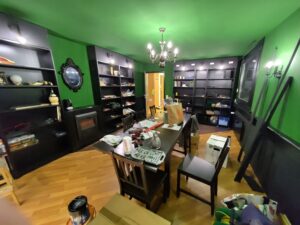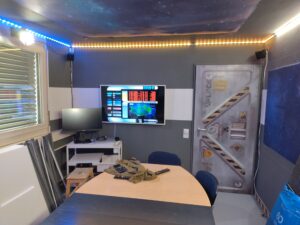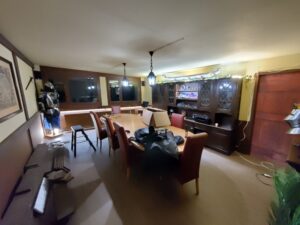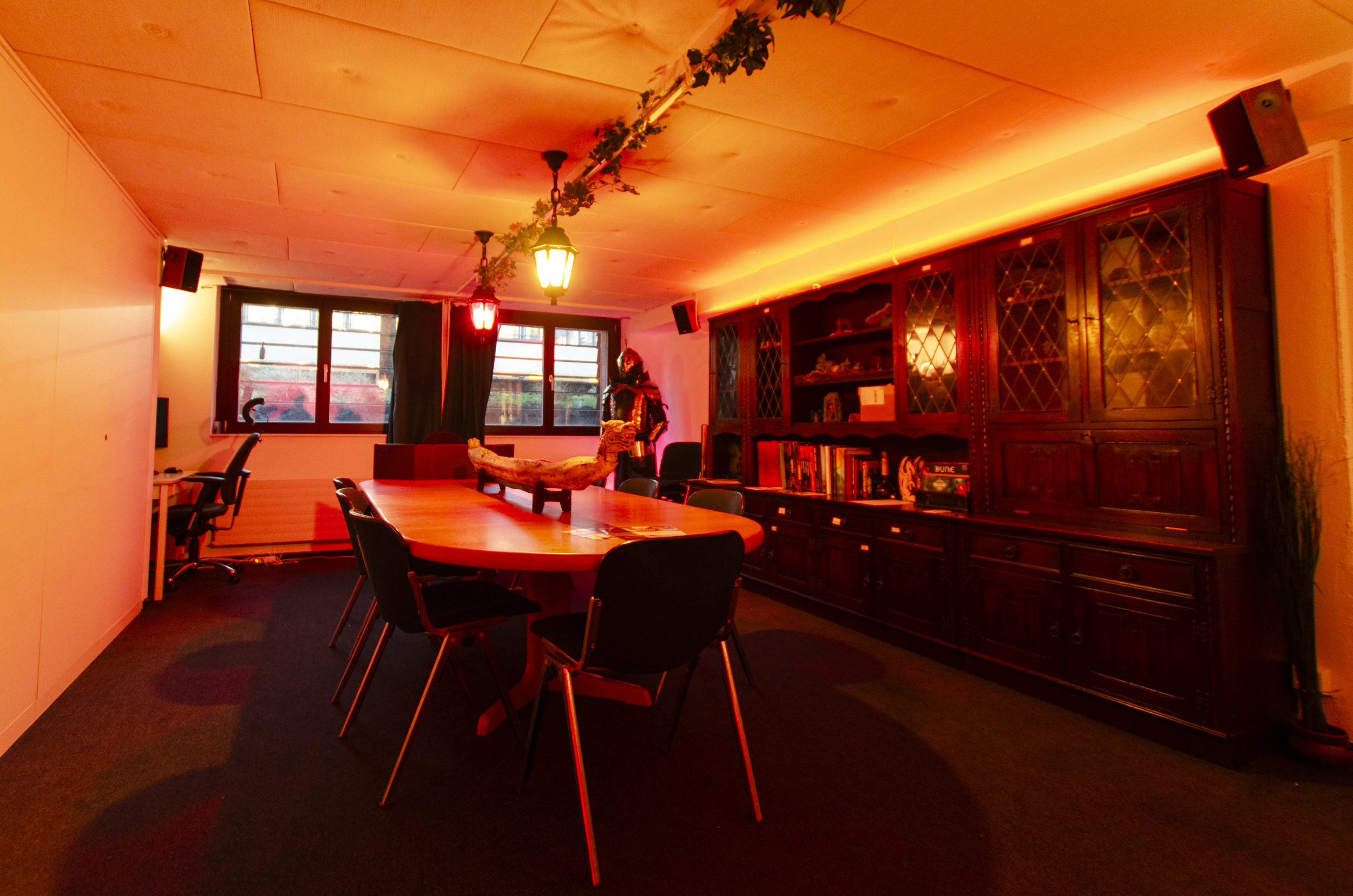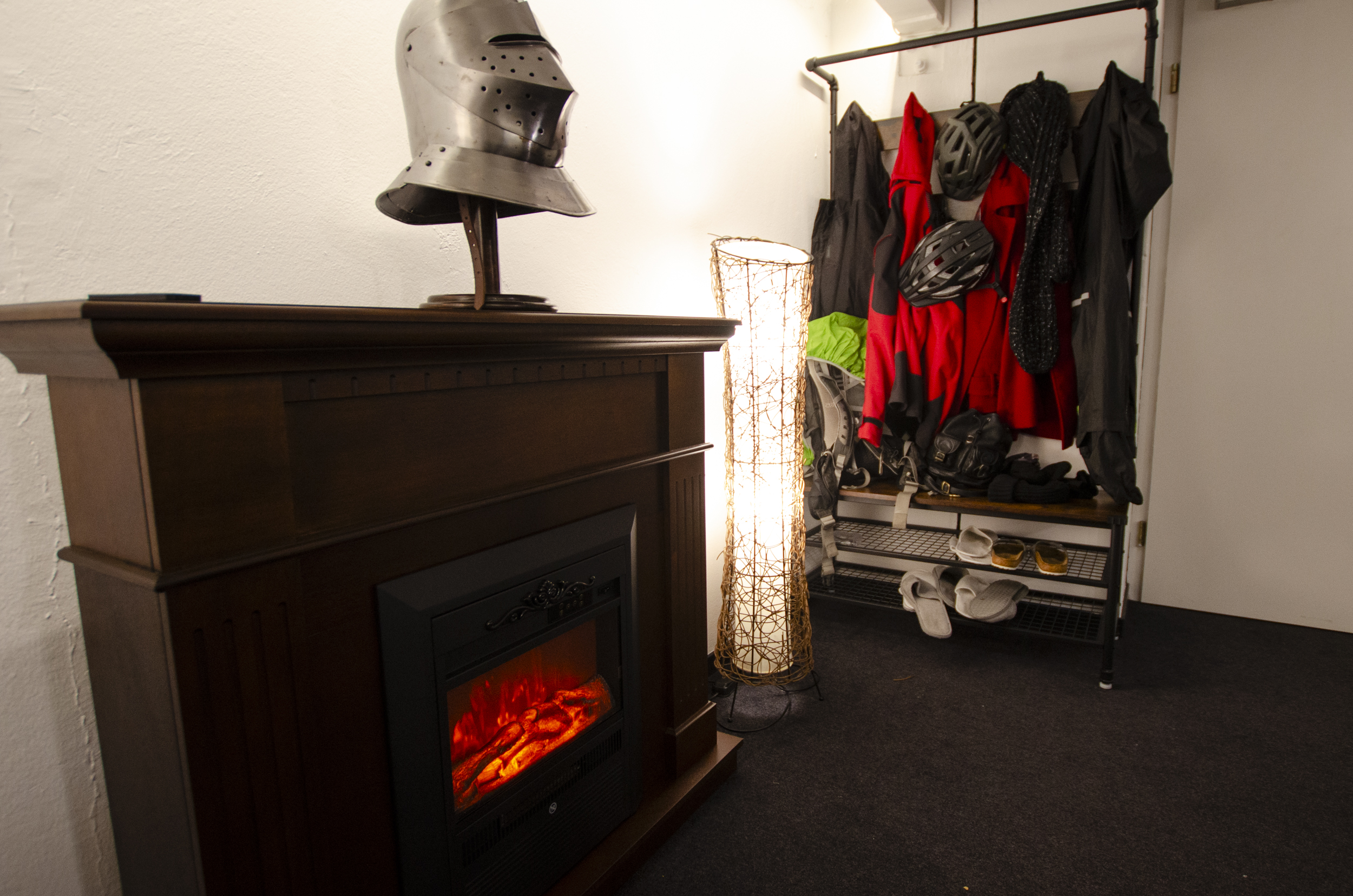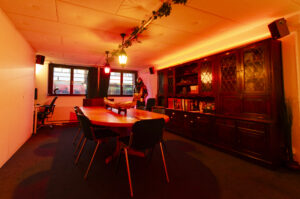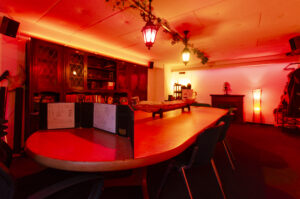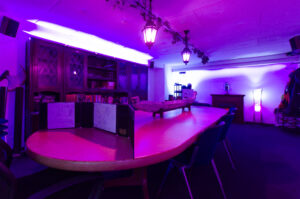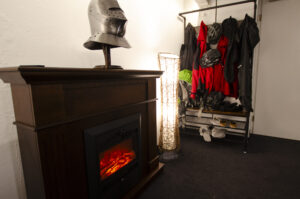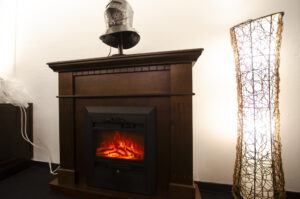


To create the perfect lighting atmosphere, all three game rooms at KuL are equipped with Philips Hue bulbs (some from third-party manufacturers as well). Of course, you can simply turn on the “regular” lights and play that way.
However, if you’re willing to put in the effort, you can create a great atmosphere with the right lighting: Are you planning a ghostly apparition at night and want it to be nice and dark? Does the scene call for a big fire and you want impressive flame effects? Should a dense jungle shimmer with the right shade of green? In this guide, I’ll show you everything you need to know.
If you’d like a personal introduction or on-site training, feel free to contact info@kul-verein.ch or @nevalor on Discord.
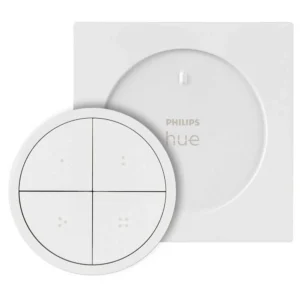
The Light Switch
The light switch is located right next to the entrance of every room. The switch is magnetic and can therefore be picked up and placed back on the table.
Normal Lighting
Simply press the button with a dot(usually top left), and the light turns on. To turn it off, press any button for about 2 seconds. The outer ring can be used to dim the light.
Special Lighting Scenes
The buttons with two to four dots usually have a “Night”, “Fire”, and another scene saved to them, which you can activate with a single click. Turning the lights off and dimming them work exactly the same way. You can also assign other scenes—or your own custom scenes—to these buttons. To do this, however, you’ll need the tablets on-site:
Tablets/Control Devices
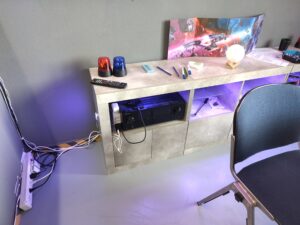
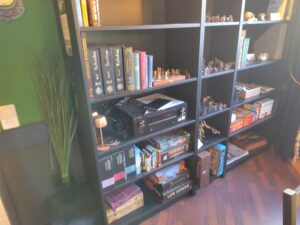
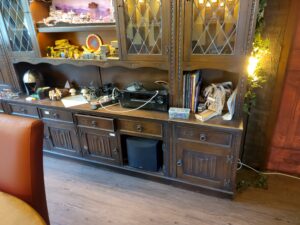
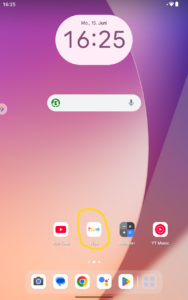
In every room, there is a tablet or smartphone (Note: operation is easier on the tablets) on top of the receiver—that is, the large music device. You may use this for all your purposes (controlling music, the digital hero’s journey, etc.), but most importantly, you can use it to control the lights. Please plug it back in at the end of your session!
The lights are controlled via the Philips Hue app. So just unlock the tablet (no code needed) and open the app.
The App
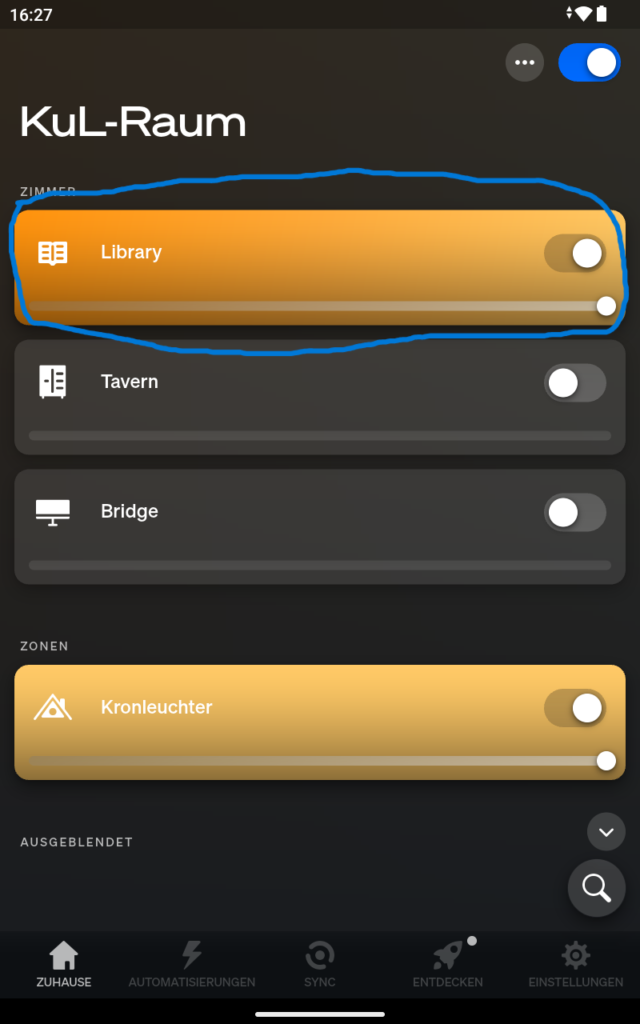
After opening the app, first select the room you want to use. As an example, I’ll use the Library (blue in Home).
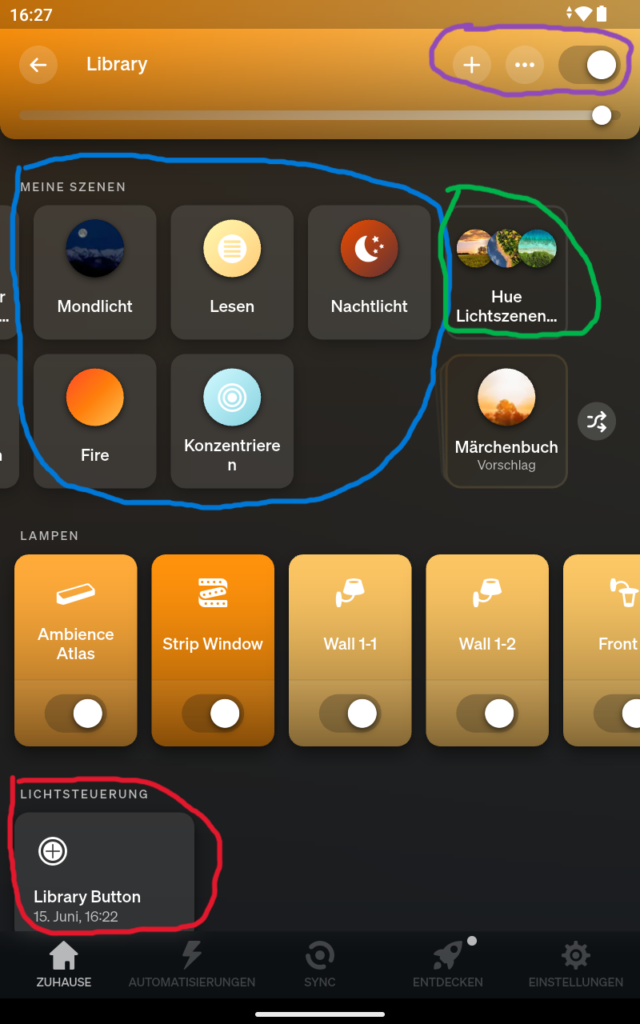
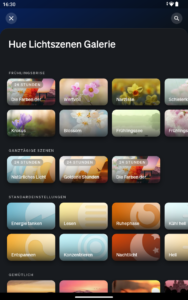
Here, you can easily select existing scenes (blue in Room Overview). Of course, you can also create your own scenes. The easiest method is to select a Hue light scene (green in Room Overview -> image on the right). Choose an image that matches the color scheme and save the scene.
You can also create scenes based on your own image or set them up completely manually. To do this, simply click the plus icon at the very top (purple in Room Overview). In this area, you can also turn the lights off or dim them.
Edit Scene & Effects
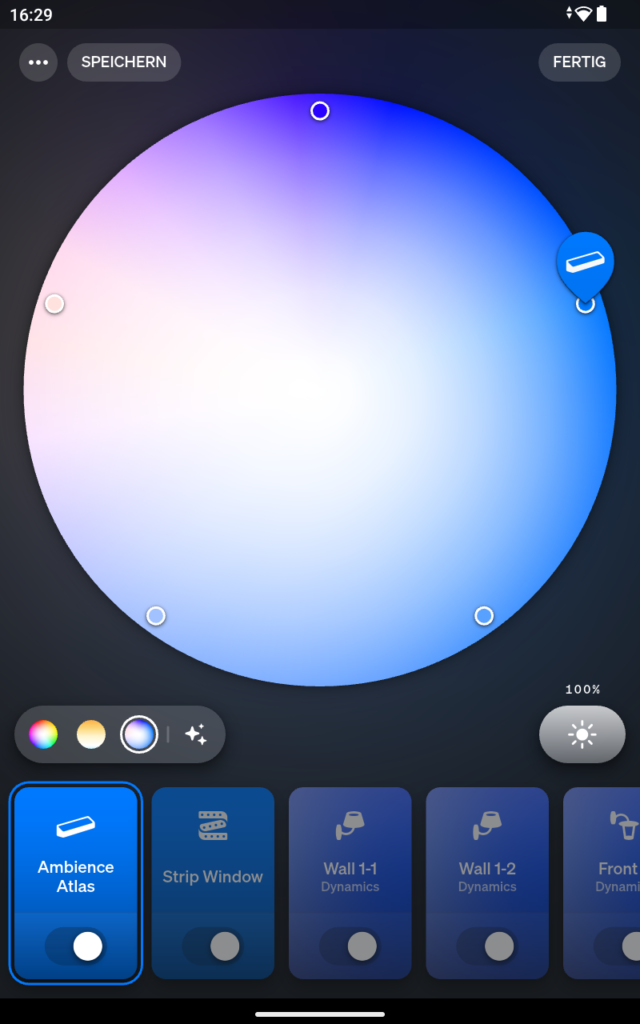
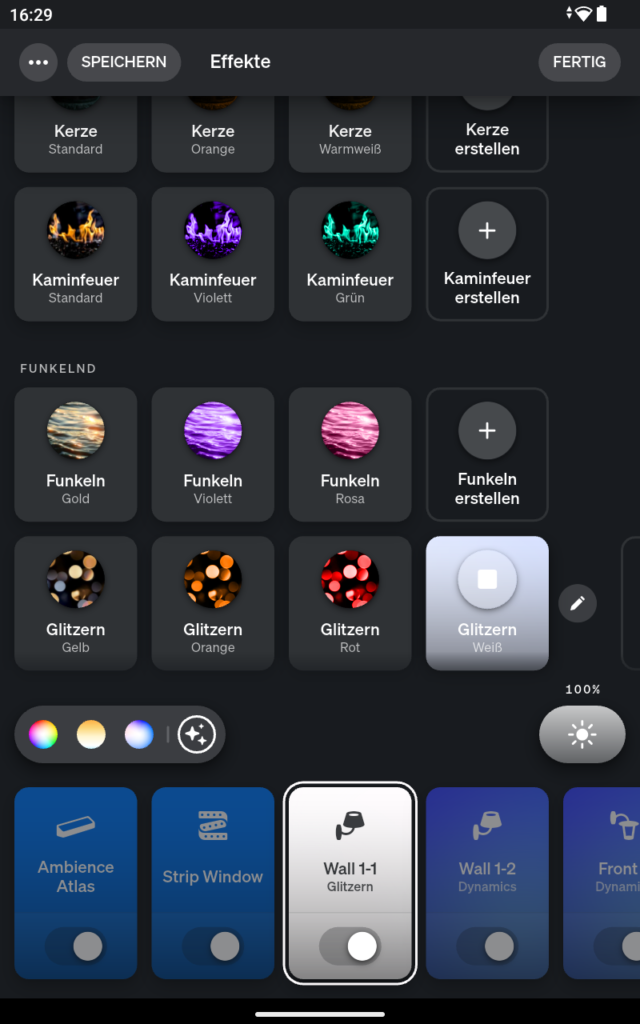
Once you’ve selected your scene (shown in blue in the room overview), a pencil icon will appear to the right of it, allowing you to customize the lights in detail.
- Simply select the light you want to change at the bottom
- Just above that on the left, you can switch between different color ranges. In this example: “All Colors”, “White Tones” and “Blue Tones”
- In the large circle, you can simply drag the lamp to the desired color
- At the bottom right, you can adjust the lamp’s brightness
- Then select Save in the top left!
To set effects (e.g., candle flickering), tap the effects icon next to the color ranges. Here you’ll find many settings to choose from. These effects can also be edited by tapping the pencil icon next to them.
Customize Light Switch
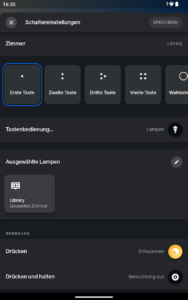
Scenes can be easily assigned to light switches. To do this, simply tap the “Library Button” in the app (red in the Room Overview) and select the desired button at the top.
At the bottom under “Press”, you can now specify which scene should appear. Finally, tap Save again. Note: Be sure to assign normal lighting back to the first button when you’re done.
Practical Example
When preparing for my sessions, I think about which lighting scenes I might need. I try to limit myself to three, since I can easily manage them using the light switch.
- The characters are outdoors almost the entire time and are traveling in winter. This scene will make up 80% of the session.
- I search through the saved scenes but don’t see anything suitable. However, in the Hue lighting scenes, I see “Winter Morning,” which is ideal. I save the scene.
- They will be camping in the wilderness, and an ambush could occur at night.
- There’s already something ideal in the saved scenes.
- The finale is a battle during a snowstorm. I want this to make an impression, so I create my own scene.
- In the Hue light scenes, I look for something with a lot of white and a little blue. After saving it, I edit the scene and add effects like “Glitter”. The selected scene also has changing colors, which I adjust as quickly as possible. This is meant to create some movement and unrest.
I now save these scenes to buttons 2–4 on the light switch—the first button remains set to normal light. I keep the switch with me, so I can easily switch scenes without having to think too much about it during the game.